Summary:
- Processing a request created by Backyou Email Agent
- How to know which emails were converted or not?
- Limitations
- Possible configurations
- How to re-route an email address?
This module allows you to:
- Save time: no need to manually create inquiries in Backyou from incoming emails — Backyou Email Agent AI does it for you.
- Measure real processing time: the delay between receiving the email and creating the Backyou request is nearly zero. The processing time displayed in Backyou Statistics is much more accurate.
- Keep all client data: even if your venue has no availability to meet the client’s request, the client record is still stored in your database.
This module is optional and can be enabled upon request and quotation. If you are interested, please contact your Backyou account manager.
General operation
Once your email address is routed to the Backyou Email Agent, each incoming message is automatically analyzed upon arrival. The AI then follows a clear, structured process to create a complete request for you, without any action required on your part.
Contact identification
The AI begins by extracting the essential information needed to identify the person contacting you: first name, last name, email address, and phone number.
- If the contact already exists in your Backyou (even with the same email address), it is automatically reused.
- If the contact does not exist, a new record is created instantly.
(Example: “Marie Dupont — marie.dupont@example.com”)
Association with a company
If the email mentions a company or organization, the AI automatically creates or links a company/organization record to the contact.
(Examples: “EventPro Company”)
Request analysis
The AI then extracts all information required to create an actionable request:
- Dates (stay, event)
- The venue mentioned
- Number of participants
- Requested products or packages (e.g., rooms, meeting room, meals)
From these elements, the AI selects the corresponding products in your Backyou catalog (e.g., a room matching the requirement “40 people in theatre layout”).
Once everything is identified, the AI automatically creates a new request in Backyou with status “New lead”, complete and ready to be converted into an offer.
Offer preparation
Since the request is already pre-filled, simply:
- verify dates, quantities and products,
- adjust if needed,
- send your offer with one click.
✅Result: you save time, you never miss a request, and your statistics finally reflect reality.
Processing a request created by Backyou Email Agent
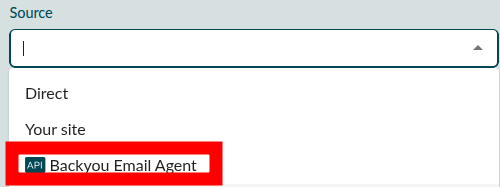
On a daily basis, requests created by the Email Agent automatically appear in the list of folders as “New lead”. You can filter these folders by using the “Source” filter and selecting “Backyou Email Agent”.
Here is a request created by the Email Agent:
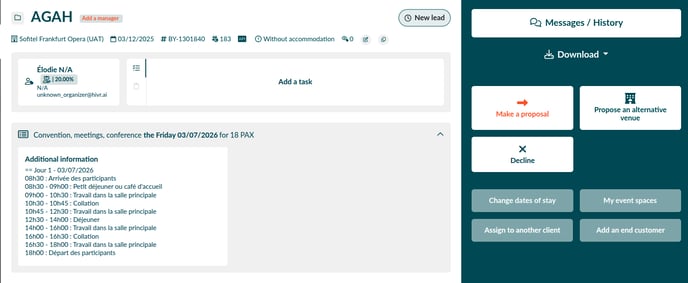
You can see the body of the email that originated the request. Those are the details that will allow you to create the offer.
You can respond to the request by clicking “Make an offer”.
⚠️Don’t forget to carefully reread the original email and the offer to ensure that the products, dates and quantities match the original request.
How to know which emails were converted or not?
To keep track of which emails were or were not converted into requests, you can visit the interface https://backyou.hivr.ai using the credentials provided to you by your Backyou contact.
⚠️ This interface is not intended for detailed email analysis; it contains no filters or sorting.
This is what the interface looks like and the different pieces of information you will find there:
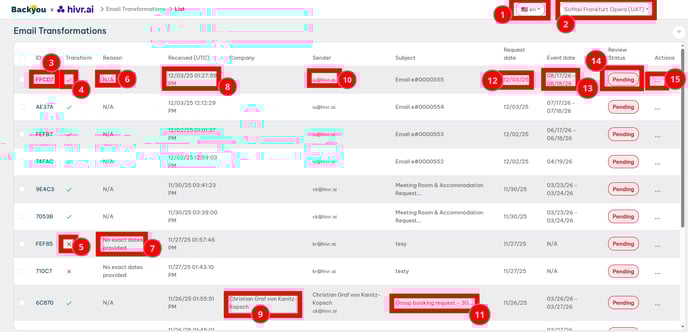
- The interface language (currently translated into French, English and German)
- The venue to which the requests in the table are addressed. If you use the module for multiple Backyou venues, you can switch from one venue to another using this dropdown.
- The request ID (it can be useful for support but is not related to the Backyou reference)
- ✅ When the request has been created in Backyou.
- ❌ When the request could not be created in Backyou.
- When the request was created in Backyou.
- The reason why the request could not be created in Backyou.
- The date and time the email was received.
- The company name (or the client name if no company name is associated)
- The client’s name and email address
- The email subject
- The request date
- The event date(s)
- The review status (Pending or Closed)
- The actions available for each email (Close/Open and View details)
- The review status or the Close action has no influence on the request; it simply helps you sort which emails you have seen/processed or not.
Limitations
For an analyzed email to be converted into a request in Backyou, several criteria must be met. If one of these criteria is not respected, the email will not be transformed. In the interface, it will appear as “not converted”, and the “Reason” column will detail the cause of the failure.
Here are the rules for email integration:
• The email must not be a reply to an existing email.
• The email must not have already been processed or exist in the system.
• The email must mention a single venue (if none is mentioned, the request will be attached to the default venue).
• The email must contain clear and unique stay/event dates (if alternative dates are proposed, one date will be chosen arbitrarily unless the client expresses a preference).
• The email must include a complete signature (first name, last name, phone number).
• Emails may be written in many languages: English, Spanish, French, German, Portuguese, Chinese, Japanese, Korean, Arabic, and more.
• Emails may include abbreviations and various language levels.
• Attachments are interpreted, and their content is summarized in the email preview, but it is recommended to check the original attachment for complete information.
• Signatures contained in images (jpeg, png, etc.) cannot be interpreted.
Possible configurations
During onboarding, the following settings can be configured:
• Minimum number of pax: if the analyzed request is below the minimum threshold, the request will not be created in Backyou.
• Package logic trigger threshold: below this pax count, package items will not be included in the offer (you can still add them manually if needed).
• The email address on which you receive RFPs; Backyou Email Agent will analyze emails received at this address.
Your Backyou contact will collect this information during onboarding.
How to re-route an email address?
Obtain the forwarding address
Backyou provides you with an address such as:
➡️ xxx@hivr.solutions
This is the address to which your emails must be routed.
Open your mailbox settings
Go to the administration panel of your email provider (Google Workspace, Microsoft 365, OVH, Ionos, etc.).
Look for options such as:
• “Forwarding”
• “Redirection”
• “Transfer rules”
Enable forwarding
Add the address provided by Backyou as the forwarding/transfer destination.
💡Tip: enable “Keep a copy in the original inbox” if available.
Test in 10 seconds
Send a test email that meets the criteria from another address.
If everything is correctly configured:
• the email appears within a few seconds in the backyou.hivr.ai interface,
• and a “New lead” request is automatically created in Backyou.
Need help?
If you are unsure or cannot find the correct setting in your email provider, simply contact Backyou support— they will guide you step by step.